
JetSign: Fill & Sign PDF Forms
JetSignBusiness
4.71.80K Reviews
- Version
- 2.7.9
- Installs
- 1.00M
- Age Rating
- Everyone
Screenshots
Our Review of JetSign: Fill & Sign PDF Forms
 Analysis by Appyee
I reach for a mobile signing app when a document needs attention and a printer is nowhere nearby. JetSign: Fill & Sign PDF Forms is built for that practical gap: it lets me work with forms on a phone, add a signature, and pass the finished file along. I find its appeal less about replacing every document tool and more about making a small but frequent job easier to finish away from a desk.
Everyday document work on a phone
Downloading JetSign: Fill & Sign PDF Forms was a breeze. It’s available for both Android and iOS, so no matter your device, you’re covered. The app’s interface is clean and user-friendly, which is a relief when you're in a hurry. Upon launching, you’re greeted with a simple dashboard that directs you to either upload a document or start a new one.
Filling forms without fighting the layout
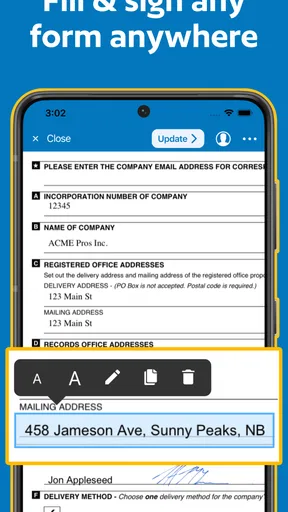
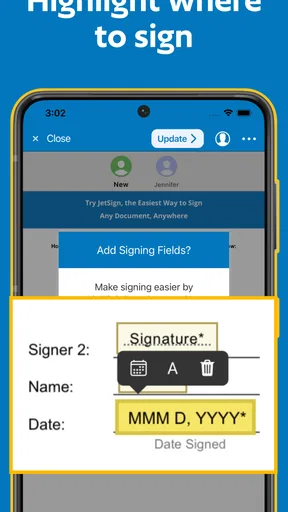
Once you have your document uploaded, the magic begins. JetSign makes it super easy to fill out forms. Just tap where you want to add text, and a text box appears. You can adjust the size and font to your liking, which I found super handy for those densely packed forms where space is a premium.
On a phone, placement matters as much as typing. I’d zoom in before adding text to a tight field, then check the page at normal size to make sure the entry looks aligned and readable. That quick second look can save an awkward return email, especially when a form has small boxes or labels close together. For a long document, I’d also scan every page before sending rather than assume the first page contains all the fields that need attention.
A useful workflow is to fill in the information that is certain first, then handle signatures and dates last. That makes it easier to catch missing details before committing to a final copy. If a form asks for information I need to verify, I would pause instead of guessing on a tiny screen; a mobile editor makes completion convenient, but it cannot make an uncertain answer correct.
Choosing a signature and preparing the file
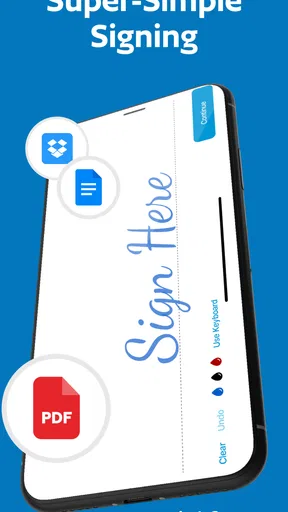
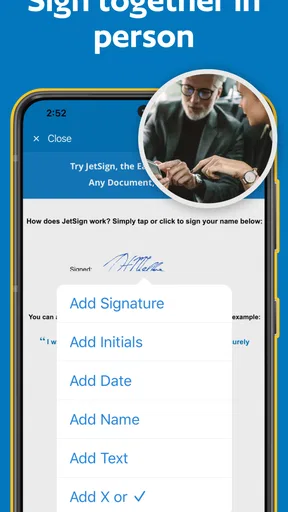
Now, let's talk about signatures. You’ve got a couple of options here: draw your own, type it out, or upload an image of your signature. I personally enjoy drawing mine with my finger—it feels somewhat satisfying, like I’m putting pen to paper. And if you’re someone who changes their signature style more than their socks, no worries! The app lets you store multiple signatures.
Those signature choices suit different situations. Drawing is quick for a one-off form, while a saved signature can reduce repeated effort when I’m handling routine paperwork. An uploaded image may be more familiar to someone who already keeps a signature graphic, but I’d take care to use it only on documents I intend to sign. Because a reusable signature is convenient, it is also worth thinking about who can access the device and avoiding casual sharing of a signature file.
Before sending a document, I’d check that the signature is in the intended field, not merely close to it, and that it hasn’t covered nearby text. A typed name can look neat, but it may not meet the recipient’s expectations for every kind of document. If the paperwork has formal signing instructions, I would follow those rather than assume that any digital method is acceptable.
Security, sharing, and sensible checks
Security is a big concern for me when handling sensitive documents, and JetSign doesn’t disappoint. The app uses high-level encryption to ensure your documents are safe and sound. Plus, you can add passwords to your signed PDFs for an extra layer of protection. It’s like having your very own digital safe.
Password protection is most useful when the recipient can actually open the file: I’d agree on the password through a separate channel rather than put it in the same message as the attachment. It adds a step for both sides, so for a low-sensitivity form going to a familiar recipient, I might prioritize a simple handoff. For personal, financial, or employment paperwork, the extra friction can be worthwhile. Either way, I would still verify the recipient and attachment before pressing send; a security feature cannot correct a wrong address.
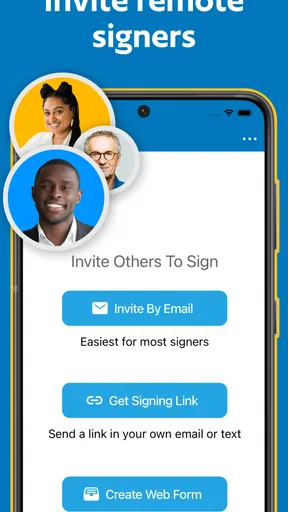
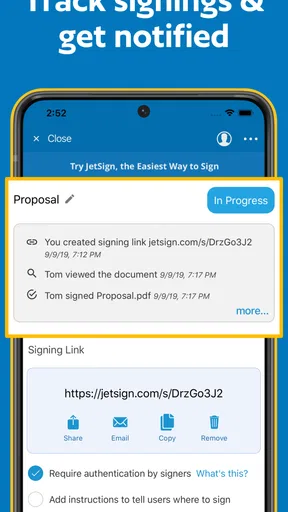
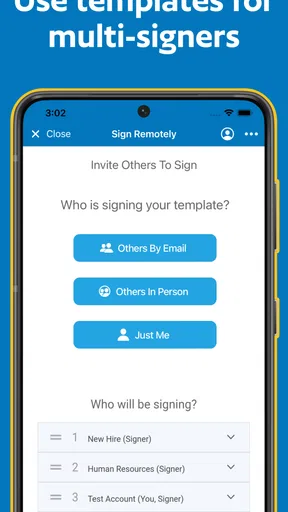
JetSign makes sharing your completed documents a snap. You can send them directly from the app via email or save them to your preferred cloud storage. I appreciate the flexibility here because I’m often bouncing between devices and platforms. The app also supports collaboration, so if you need someone else’s autograph, you can easily request their signature without leaving your digital workspace.
For a remote signer, I’d make the request only after checking that the document is complete enough for them to review and that their role is clear. This helps avoid sending a half-filled draft that prompts questions or needs to be replaced. For a document that several people must approve in a particular order, I would confirm the required process first; a convenient signature request is not automatically a substitute for a formal approval system.
Where it fits among document tools
One of the standout features for me is the app’s integration capabilities. JetSign works seamlessly with other apps like Google Drive, Dropbox, and even email clients. This integration means you can pull documents from anywhere, sign them, and send them back without missing a beat. It’s a real time-saver when you’re juggling multiple tasks.
That connected workflow is a meaningful difference from printing, signing by hand, scanning, and then emailing a file back. It also gives JetSign a practical role beside general cloud storage: storage helps keep documents organized, while this app focuses on completing and returning them. A built-in document viewer may be enough for someone who only needs to read a PDF, but it is less suited to someone who regularly has to add information and signatures. At the other end, a desktop PDF editor can be preferable for extensive edits, careful page-level work, or a larger screen.
A realistic use is a freelancer receiving a short agreement while away from a home office. I could open the file from email or cloud storage, fill the relevant fields, check the placement, add a signature, and send the PDF back without arranging access to a scanner. The time-saving comes from removing the handoff between paper and phone, not from skipping the review of the agreement itself.
Another useful case is a parent completing a school permission form or a renter returning routine paperwork while travelling. In both situations, the value is immediate: the document can be handled where it arrives. I would still keep an untouched copy of important originals and make sure the finished file is clearly named, so it is easy to distinguish the signed version from a blank form later.
Cost, limits, and the right fit
JetSign is a free business app from JetSign, and its current version is 2.7.8. In-app purchases range from $4.99 to $299.99 per item, so the free entry point does not mean every possible use is necessarily included at no cost. I would start with the free access and see whether it handles my actual document routine before paying for anything. The listed purchase range alone does not tell me which paid option is right for a particular workload, so I would check the in-app terms before committing.
The app has a 4.8 average from around 34,000 ratings, with more than a million installs. It is rated for Everyone, was released on March 6, 2019, and requires Android 8.0 or later on Android devices. Those details make it easy to judge whether a device is in range, but they do not change the main question: how often will I need to fill and sign files on a phone?
For occasional paperwork, the free starting point and direct signing workflow are attractive. For someone who signs documents every day, the paid options may be worth investigating, but I would compare their actual limits and terms with the time saved before spending. A frequent signer who needs advanced document control, detailed editing, or a tightly managed approval process may be better served by a desktop-oriented or business-focused system. JetSign is strongest when the job is straightforward and mobile, not when signing is only one piece of a complex records workflow.
There is also the ordinary friction of working on a small screen. Long forms take patience, fine positioning can need a careful zoom-and-check routine, and typing substantial text on a phone is less comfortable than using a computer. If I have many pages to edit or need to revise the document’s underlying content, I would switch to a larger-screen editor rather than force the whole task through a mobile signing app.
My verdict on whether to use it
After spending some quality time with JetSign, I’m thoroughly impressed. It’s an app that understands the hassle of paperwork and offers a straightforward solution. Whether you’re a freelancer needing to sign contracts quickly or someone who just hates the printer-scanner dance, JetSign is a game-changer.
I’d recommend it to people who mainly need to complete, sign, and return common documents from a phone, especially when the file may arrive through email or cloud storage. Its mix of text entry, several signature methods, password-protected PDFs, and remote signature requests covers more than a simple mark-up tool, while remaining focused on a familiar job. The most useful habit is to inspect the final PDF before sharing it: confirm the fields, signature, pages, and recipient rather than treating a completed screen as proof that everything is correct.
I would skip it if I rarely sign digital documents, prefer doing all paperwork on a computer, or need a specialized signing process with strict controls. I’d also avoid choosing any mobile signing app as a replacement for professional advice about whether a particular document can be signed electronically. In those cases, the usual alternative—a desktop editor, an organization’s required platform, or a professional workflow—may be a better fit.
In a world where time is money, having an app like JetSign at your fingertips can make all the difference. So go ahead, give it a whirl, and simplify your document signing process. Who knew signing papers could feel so... digital?
Verdict
Strengths of JetSign: Fill & Sign PDF Forms
- User-friendly interface, easy navigation.
- Supports multiple document formats.
- No internet required for signing.
- Secure with encryption for documents.
- Customizable signature options available.
Limitations of JetSign: Fill & Sign PDF Forms
- Limited free features, requires upgrade.
- Occasional lag on older devices.
- No integration with some cloud services.
- Ads can be intrusive in free version.
- Limited customer support options.
Similar Picks in This Category
View All
LinkedIn: Community & Network
LinkedIn3.8

Zoom Workplace
zoom.com4.1

Microsoft Teams
Microsoft Corporation4.6

Meta Business Suite
Meta Platforms, Inc.4.6

Webex Meetings
Cisco Systems, Inc.4.5

TeamViewer Remote Control
TeamViewer4.4
Frequently Asked Questions
What platforms is JetSign available on?
JetSign is available for both Android and iOS platforms, making it accessible to a wide range of users. Whether you're using a smartphone or tablet, you can easily download JetSign from the Google Play Store or the Apple App Store. This cross-platform availability ensures seamless usability for all your PDF signing needs.
Can I use JetSign offline?
Yes, JetSign allows you to fill and sign PDF forms even when you're offline. This feature is particularly useful for users who may not always have internet access. You can complete your documents and once you're back online, you can easily share or store them as needed. This flexibility makes JetSign a reliable tool for on-the-go usage.
How secure is JetSign for handling sensitive documents?
JetSign prioritizes security by using advanced encryption to protect your documents. It ensures that all your sensitive information remains confidential. The app doesn't store your documents on its servers, which adds an extra layer of security. This focus on privacy and security makes JetSign a trustworthy option for handling important documents.
What types of documents can I sign with JetSign?
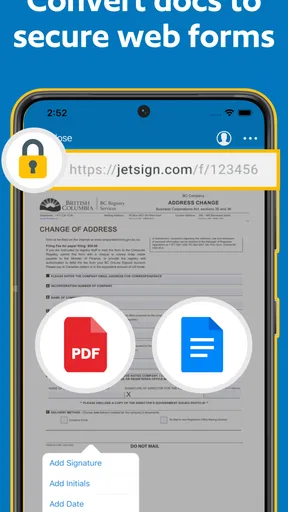
JetSign supports a wide range of document types, primarily focusing on PDF files. You can import documents from cloud services, email, or directly from your device. This versatility allows you to handle various types of forms and contracts effortlessly, making it a comprehensive solution for all your document signing needs.
Does JetSign offer any free features or a trial period?
JetSign offers a free version with basic features, which is ideal for occasional users. However, for more advanced features, such as unlimited signing and access to premium tools, a subscription may be required. The app often provides a free trial period, allowing users to explore its full capabilities before committing to a subscription.
